Identity Provider
Introduction
The Identity Provider allows SOClass users to be able to log into a web application without sharing their credentials. The users are then securely authorised via OAuth 2 to use the web application. The user data is securely kept into the SOClass database and is not shared.
Users who will benefit from this functionality are economic agents, declarants, importers and exporters. They use their SOClass user accounts in web applications without exposing sensitive user data to those applications.
Customs also highly benefit from this feature as all users will be precisely identified when performing operations on e-documents, as if they were using the SOClass client.
As a result of using the Identity Provider Customs will have their users able to log into various client applications without asking them to invest time and efforts to create multiple accounts for each application to come.
External web applications can therefore rely on the users identification performed by the Customs system, and setting the necessary access rights of these users within the application.
Connector OAuth 2.0 access token
The following steps show how a web application interacts with SOClass' OAuth 2.0 server to obtain a user's consent to perform an API request on the user's behalf. The web application must have that consent before it can execute a Connector API request that requires user authorization.
The list below quickly summarizes these steps:
- The web application identifies the permissions it needs.
- The web application redirects the user to the Customs system (SOClass) along with the list of requested permissions.
- The user decides whether to grant the permissions to the web application.
- The web application finds out what the user decided.
- If the user granted the requested permissions, the web application retrieves tokens needed to make Connector API requests on the user's behalf.
Example of user sign-up
The screenshots presented below follow the interaction between a web application and SOClass via the Connector API. In the examples below the KeyCloak acts as the login manager for the web application.
A user tries to log into the web client. The application’s login manager (KeyCloak in this example) offers alternative login option via 'Customs system'.
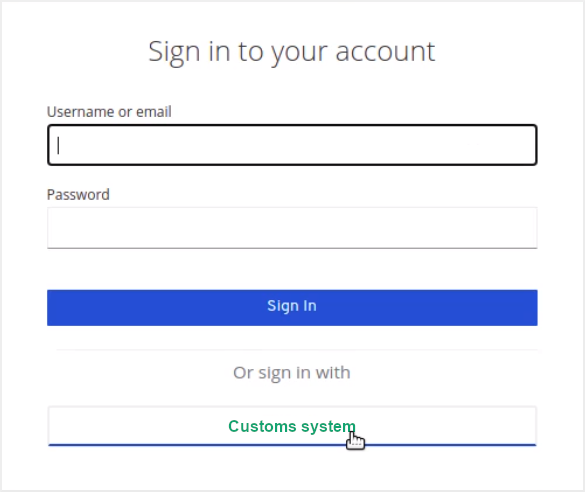
When the user selects to sign in with the 'Customs System' option they are redirected to the Connector login screen, which can be customized with the look &feel of the Customs system.
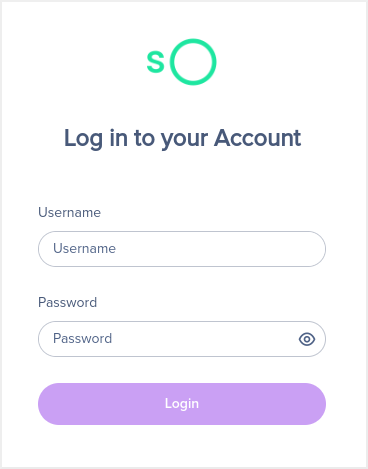
The user enters their SOClass credentials there and clicks the Sign in button.
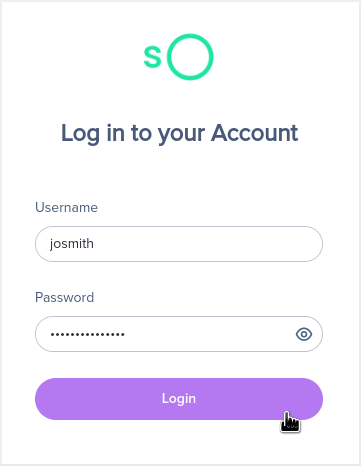
If successfully verified, the user is redirected back to the login manager of the web application.
The redirect URL contains an authorization code, sent by the Connector, which is used by the web application to request an access token necessary for making requests to the Connector API.
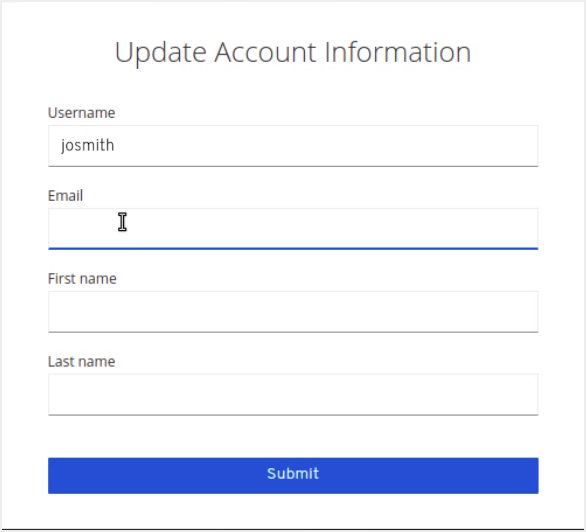
Upon the sign up, the web application can ask for further information. In this example the application requires some additional information like the e-mail address and name.
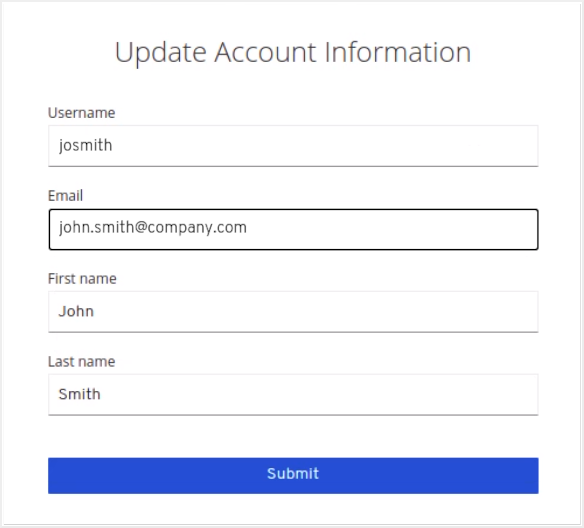
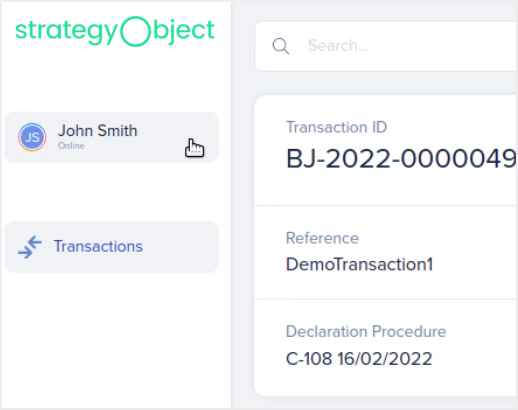
When the process has been completed successfully, the web application will show the details provided for the logged in user as shown below.